

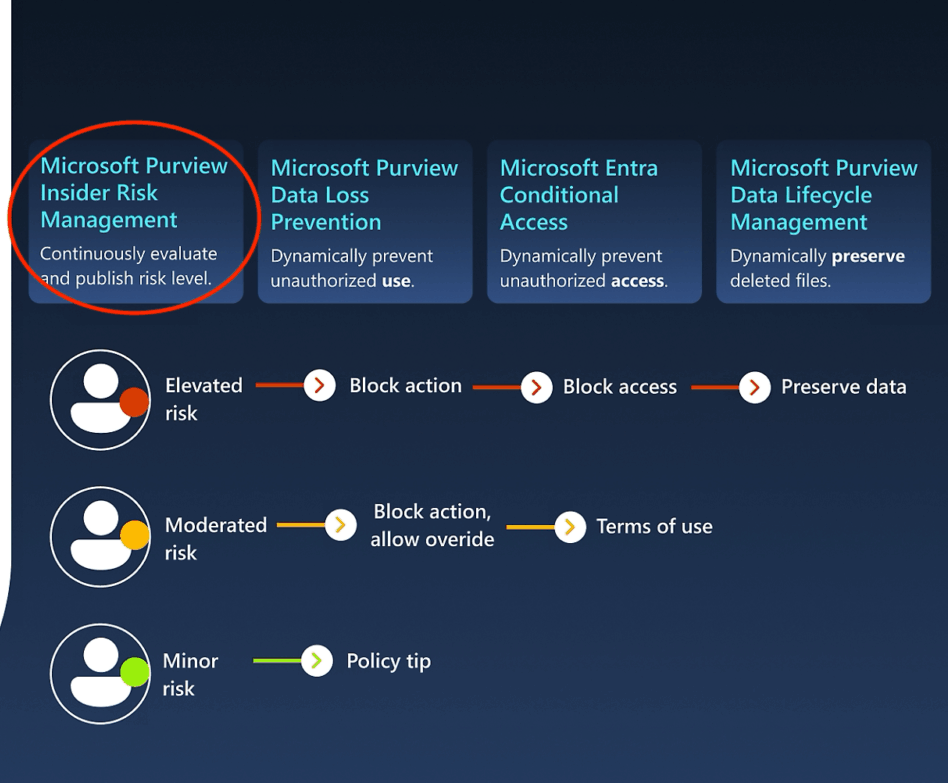
Introduction
Insider risk – whether from error, departure, or misuse – remains a large business challenge. According to Cybersecurity Insiders, 83 % of the organizations reported at least 1 insider attack during 2024*. Microsoft Purview’s Insider Risk Management detects risk based on policies, but detection alone is not enough. Organizations need to turn those signals into reliable action. This blog post explains why and how to automate that process, without going too deep into technical jargon. The goal is faster, uniform handling of risk events and clearer accountability. If you are new to the Microsoft Purview’s Insider Risk Management feature, please review the Microsoft Learn documentation prior proceeding with the reading of this blog post.
Why Automation Matters
Manual review delays response, varies by reviewer, and consumes capacity. Automation ensures that when a policy match occurs, relevant context is collected, decisions are made according to predefined rules, and follow-up actions happen without waiting for manual coordination. That includes applying controls, notifying stakeholders, and initiating enrichment, all in a consistent, auditable way.
Core Components
Purview risk policies define which activities to monitor and how to score them. Intelligent detections enrich raw signals by correlating actions across sources. Adaptive protection uses risk scores to enforce controls – like requiring reauthentication or restricting sharing. Cases collect related alerts into a single view for review.
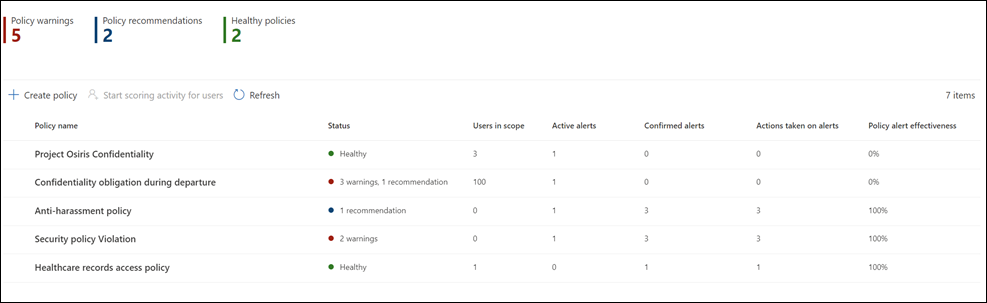
Insider Risk policy dashboard (Picture: Microsoft)
Preparation
Before you automate, confirm that you have:
- The required Microsoft 365 licensing and enabled data sources.
- Defined roles for policy authors, investigators, and privacy reviewers.
- A clear framework mapping risk scenarios to policy configurations and follow-up steps.
Building the Workflow
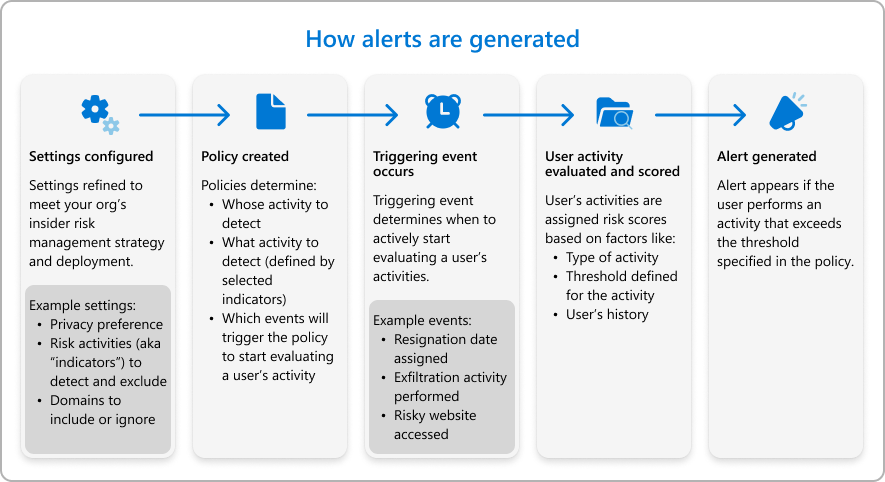
Prior building your first workflow, it is recommended to spend some time to understand how the IRM alerts are generated.
First, pick or customize policies for key scenarios – departing employees, large downloads, risky AI use – then set thresholds and scope them to the right user groups. Enable adaptive protection so that when a policy triggers, downstream controls (for example, extra authentication or temporary access limits) apply automatically.
Next, use Power Automate to orchestrate your response. When a high-severity case appears, the flow should:
- Pull case details and recent activity.
- Enrich with HR context (role changes, departure dates).
- Send the summary to Security team, HR, or legal via Teams chat message or email.
- Trigger controls such as Conditional Access adjustments or ticket creation in your incident system.
- If the behavior looks unintentional, send a tailored notice via email or Teams message to the user to prevent recurrence.
Embed decision points – when to notify versus when to escalate – and build in human review for serious cases.
Driving Consistency and Scale
Run a pilot with a small group to fine-tune thresholds and scopes. Document each automated action and its trigger so everyone knows what will happen and when. Use case outcomes to adjust your policies and controls. Regularly review metrics – time-to-triage, false-positive rates, and number of automated mitigations – to keep the system aligned with your risk tolerance. It is better to start small with a pilot project and upscale it later.
Measuring Success
Track how quickly cases reach investigators, how often automation handles routine follow-ups, and whether user notifications reduce repeat incidents. Monitor policy coverage to ensure all critical teams and scenarios are included.
Sample Scenario
A departing engineer downloads large code files and uses an AI assistant. Purview flags both behaviors, the combined score creates a high-severity case, and the automated flow enriches it with HR data, notifies security and HR, applies a temporary sharing block, and sends a user notice if it appears unintentional. The result is a consistent response without manual coordination.
Use Copilot to Summarize Alert Activities
You can use Copilot to summarize user activities to be in more understandable format. This can be done by selecting Summarize with Copilot on the user details pane. The summary contains important information about the user and top risk factors. This summary helps identify users who might pose the highest insider risk to your organization.
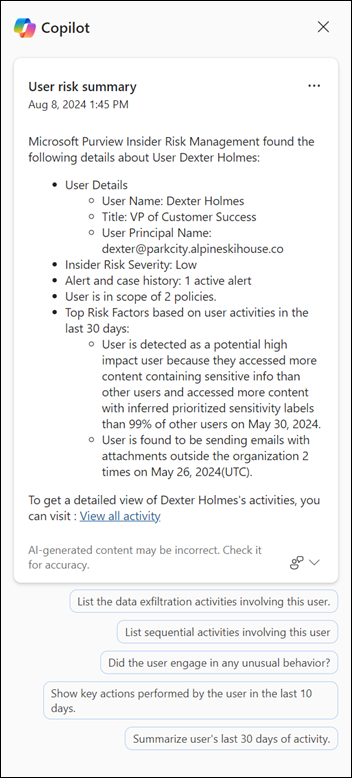
Example of Copilot summary (Picture: Microsoft)
This streamlined process ensures that insider risk alerts lead directly to the right actions, every time – freeing your teams to focus on the cases that need human judgment.
Getting Started with Policy Creation (Easy way)
To create your first Insider Risk Management policy in Microsoft Purview, sign in to the Microsoft Purview portal and navigate to Solutions > Insider Risk Management > Policies. Click Create policy and choose a built-in template (for example, “Departing employees” or “Data exfiltration”). Give the policy a clear name, scope it to the users or groups you want to monitor, and adjust the indicators and scoring thresholds to match your organization’s risk tolerance. Set up alert notifications and, if desired, link to a Power Automate flow for immediate handling. Finally, review your settings and enable the policy. From there, monitor the policy dashboard for initial alerts, tune thresholds as needed, and gradually expand to cover additional scenarios.
Do you have any questions about the process or comments, feel free to share them below! I am more than happy to answer them.
* = Cybersecurity Insiders, Insider Threat Report 2024, available here.
Share this post:
Leave a Comment